You just took photos of a dozen contract pages, and the other party wants them as a single PDF. Or you've put together a bunch of screenshots and diagrams for a presentation, and sending them one by one feels messy. But every online tool you find asks you to upload your files first — and you can't help wondering where they end up.
This is one of the most common document tasks: combining loose images into a single PDF. Most "free" online PDF tools either limit how many pages you can process, throw a paywall at the download step, or quietly store your files on their servers.
Pixel Pocket's image-to-PDF feature was built for exactly this problem. Everything runs in your browser. From the moment you drag in your images to the moment you download the result, your files never leave your computer.
Why Convert Images to PDF
Combining loose images into a single PDF is more than just tidying up.
- Preserves quality — PDF is a fixed-layout format that looks identical on any device. Images pasted into Word or PowerPoint can shift or lose quality when opened on another machine.
- Print-ready — One PDF prints all pages at once instead of opening images one by one.
- Easy archiving — One file replaces a folder of loose images. Perfect for contracts, receipts, and scanned notes.
What You'll Need
- JPG or PNG images you want to combine (no limit on quantity)
- A modern browser (Chrome, Edge, Firefox, Safari)
- About 20 seconds
No software to install. No account. No payment.
Step 1: Open the PDF Converter (Image to PDF Mode)
Go to the PDF Converter page. It starts in "PDF to Image" mode by default. Click the toggle at the top to switch to "Image to PDF".
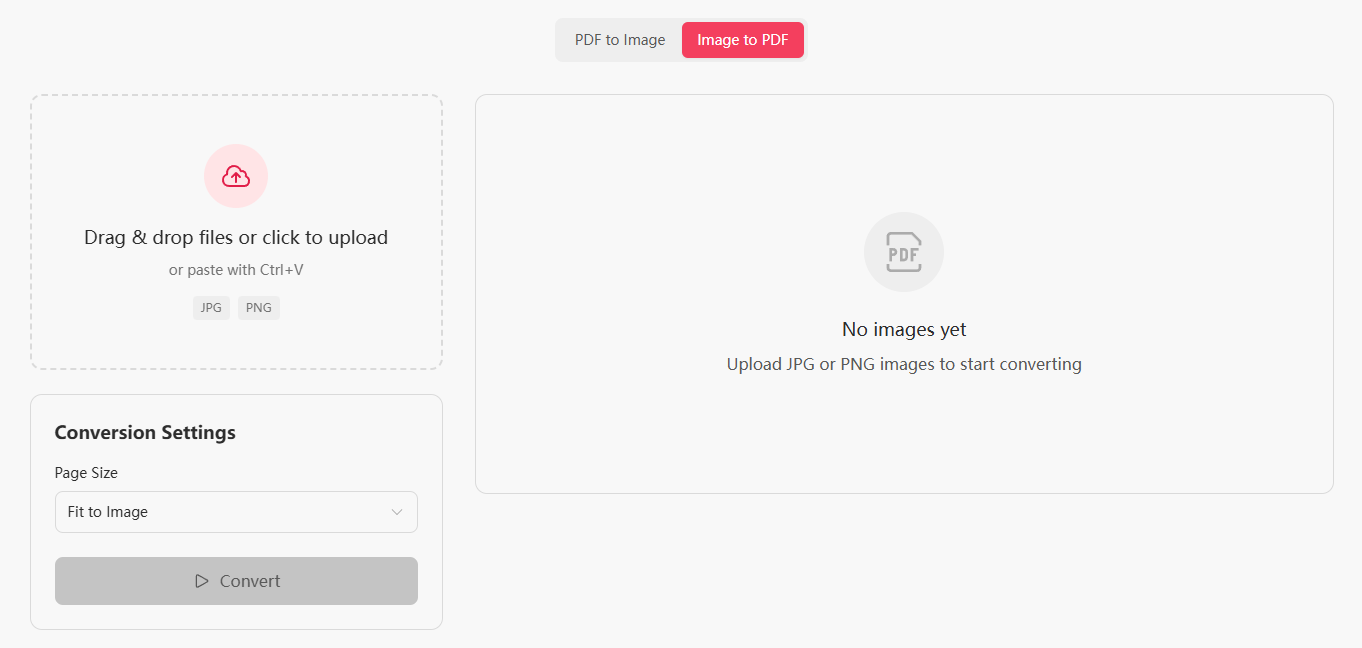
The tool has a two-column layout: upload area and settings on the left, image grid and download on the right. Clean interface, no ads, no clutter.
Step 2: Upload Your Images
Click the upload area or drag your images directly in. The tool accepts two formats:
- JPEG / JPG
- PNG
You can add as many images as you want at once. They'll appear in a grid on the right side in the order you added them, with clear preview thumbnails.
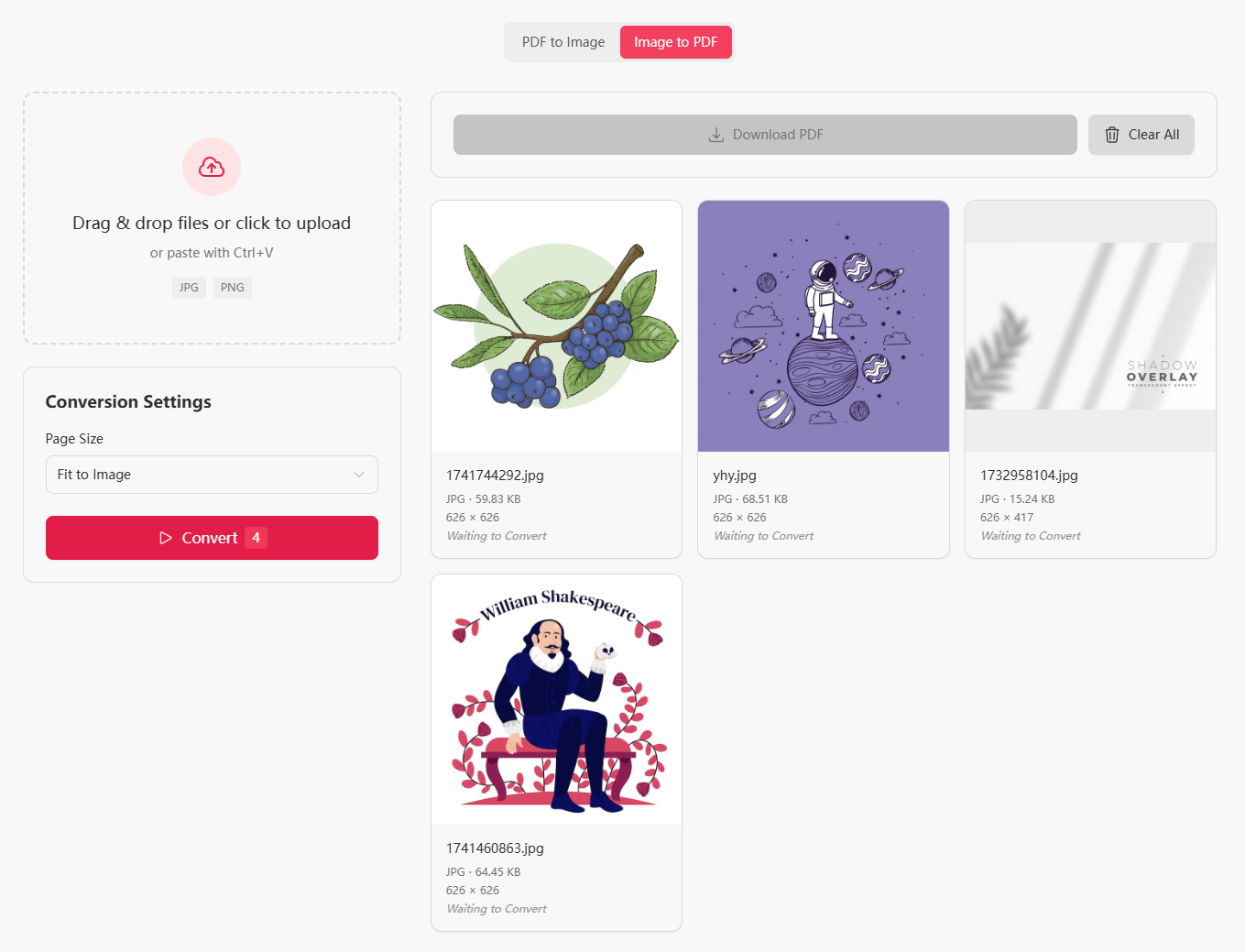
If you need to reorder, remove an image and re-upload it in the correct position. The current version follows upload order, so plan your sequence before converting.
Note: If you have images in other formats (WebP, BMP, AVIF), use the Image Format Converter to convert them to JPG or PNG first.
Step 3: Choose Page Size
Once your images are uploaded, pick the page size for your PDF from the settings panel. There are three options:
| Page Size | Effect | Best For |
|---|---|---|
| Fit to Image (default) | Each page matches the image dimensions | Portfolio presentations, maintaining original proportions |
| A4 | Images embedded in a standard A4 page | Printing, formal submissions, archiving |
| Letter | Images embedded in a standard Letter page | North American document standards |
When you select A4 or Letter, you can also set the page orientation:
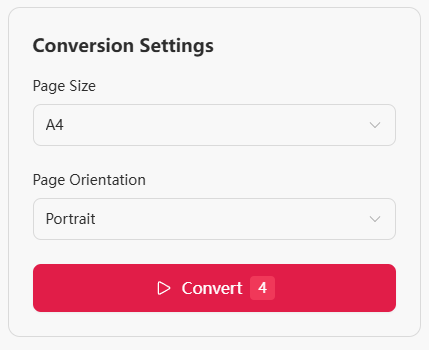
- Auto — Detects orientation from each image's aspect ratio (recommended)
- Portrait — Forces portrait layout for all pages
- Landscape — Forces landscape layout for all pages
Whichever size you choose, images are automatically centered and scaled proportionally — no cropping or distortion.
Tip: If your image aspect ratio differs significantly from the page size (e.g., a wide image on a portrait A4 page), you'll see blank space around the edges. Switch to "Fit to Image" mode to match each page to your image proportions.
Step 4: Start Conversion
Click the "Convert" button to begin. A progress bar shows the status of each image.
The entire merge process happens inside your browser. Zero data is sent to any server.
Step 5: Download Your PDF
Once complete, click the "Download PDF" button. Your browser will save the file immediately with the default filename images-to-pdf.pdf — you can rename it however you like.

The whole workflow from upload to download typically takes just a few seconds.
Pro Tips
1. Use A4 for formal submissions
If the PDF is for official use — applications, contracts, printing — choose A4 or Letter as the page size. In "Fit to Image" mode, pages may have different dimensions, which can cause display issues in some PDF readers or printers.
2. JPG for photos, PNG for screenshots
JPG gives smaller file sizes for photos and camera images. Use PNG for screenshots, charts, or anything that needs a transparent background.
3. Upload order determines page order
The order of images in your PDF matches the order you uploaded them. Arrange your files before dragging them in, or remove and re-upload to fix the sequence.
4. Works across devices
Since everything runs in the browser, you can process on any device and download the result directly. No worries about files lingering on someone else's machine.
Frequently Asked Questions
Does converting images to PDF reduce quality?
No. All processing happens locally in your browser with no additional compression or re-encoding. The output PDF preserves the original image quality.
What image formats are supported?
Currently JPG and PNG. For WebP, BMP, AVIF, or other formats, use the Image Format Converter first to convert them to JPG or PNG.
How many images can I combine?
There is no limit. You can combine a few or hundreds of images at once. Processing time increases with the number of images, but the tool handles them all.
Is it safe? Will my files be uploaded?
Yes, it's safe. Everything runs locally in your browser. Your images and the generated PDF never leave your device. All data is cleared when you close the page.
What if the output PDF is too large?
Compress your images first using the Image Compressor, or choose "Fit to Image" page size to avoid embedding oversized images in standard page dimensions.
How do I change the image order?
Images follow upload order. Remove images and re-upload in the correct sequence to reorder.
Try It Now
The Image to PDF tool is completely free. No account needed. Your files stay on your computer from start to finish.
Also check out:
- PDF to Image — the reverse direction, extract every page as a standalone image
- Image Format Converter — convert between JPEG, PNG, WebP, AVIF, and BMP