You receive a PDF with a few great illustrations you'd like to save as standalone images. Or your presentation was exported as a PDF, and you want to turn each slide into a shareable image. Maybe you have an eBook in PDF format and just want to convert a chapter to images for reading on your phone.
Extracting images from a PDF sounds simple, but the usual options all have drawbacks: screenshots are low-res, professional software is overkill, and online tools require uploads.
Pixel Pocket's PDF-to-image tool solves this. Drag in your PDF, choose your format, click convert — every page becomes a standalone image. All inside your browser, with zero uploads.
Why Convert PDF to Images
PDFs are great for reading and printing, but images are often more practical.
- Social sharing — Post directly to social platforms. No extra steps for recipients.
- Web embedding — Images are lighter and more compatible than inline PDF viewers.
- Standalone use — Each page becomes an independent image you can crop, annotate, and reference without opening the full PDF.
What You'll Need
- A PDF file (or multiple PDFs — batch processing is supported)
- A modern browser (Chrome, Edge, Firefox, Safari)
- About 30 seconds
No software to install. No account. No payment.
Step 1: Open the PDF to Image Tool
Go to the PDF Converter page. It starts in "PDF to Image" mode by default, so you're ready to go immediately.
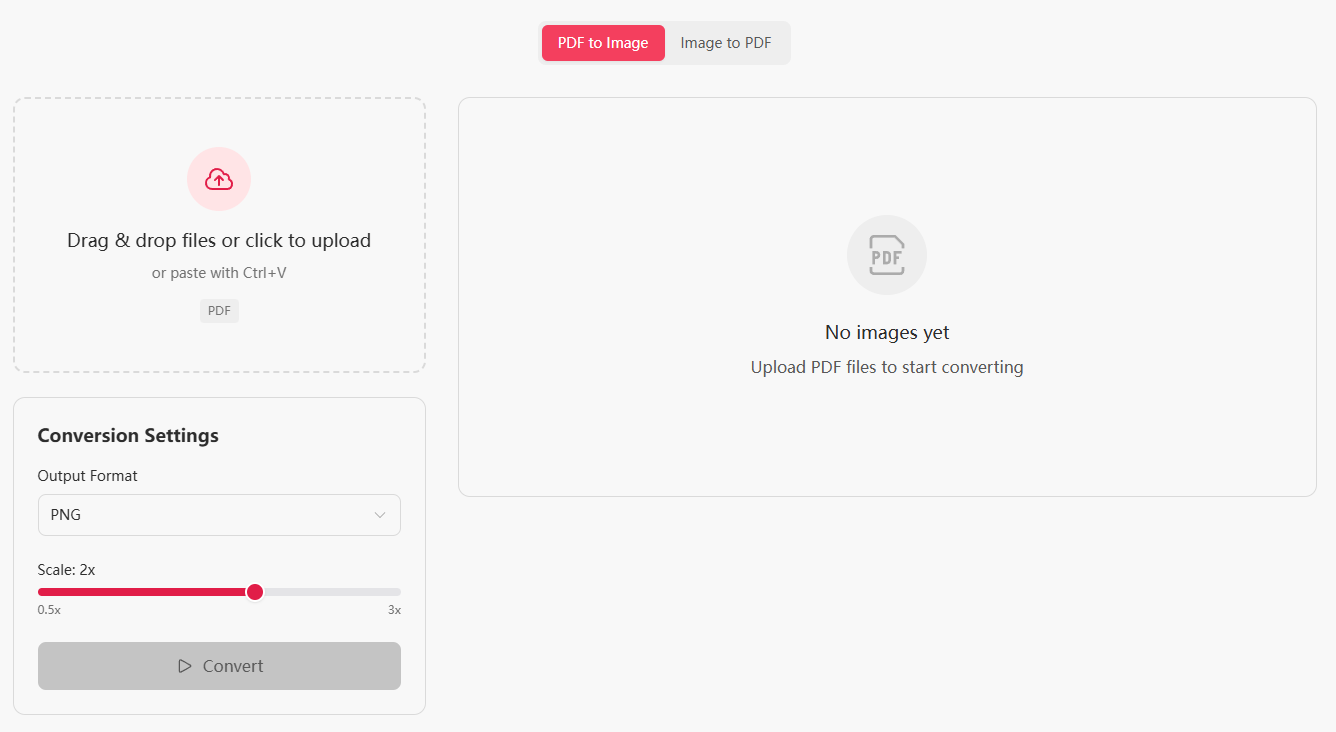
Clean two-column layout: upload area and settings on the left, PDF file list and conversion results on the right.
Step 2: Upload Your PDF
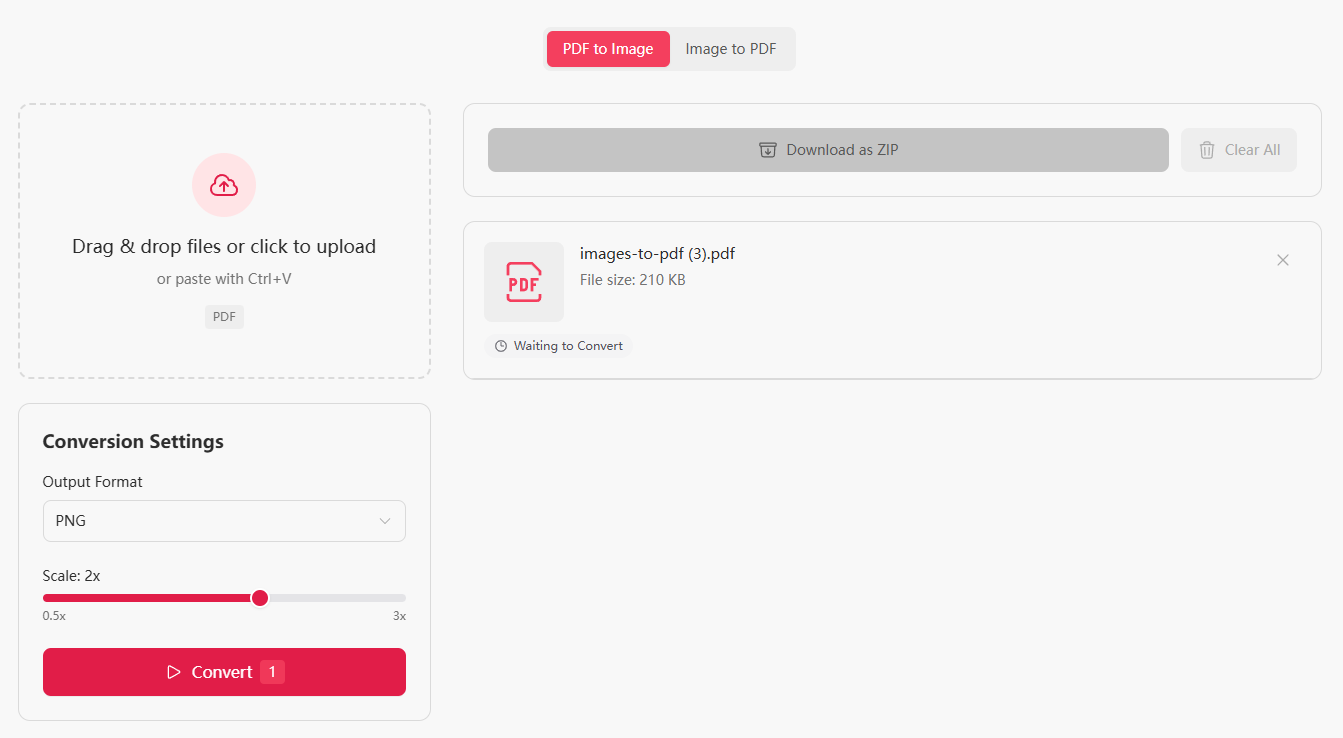
Drag your PDF into the upload area or click to select it. You can upload multiple PDFs at once — there's no page limit:
- A 5-page contract? No problem.
- A 200-page product manual? Works just fine.
- Multiple PDFs at the same time? Absolutely.
Each PDF appears as a card showing its filename and size.
Step 3: Configure Output Settings
The left panel gives you three adjustable parameters:
Output Format
| Format | Characteristics | Best For |
|---|---|---|
| PNG (default) | Lossless, supports transparency | Screenshots, illustrations, graphics |
| JPEG | Lossy compression, smaller files | Photo-heavy PDFs, no transparency needed |
| WebP | Modern format, smaller than JPEG | Web use, saving storage space |
Quality (JPEG and WebP only)
These are lossy formats. The quality slider controls how much compression is applied:
- 80-90% — Nearly indistinguishable from original, much smaller file size (recommended)
- 60-70% — Visible compression but acceptable
- Below 50% — Not recommended unless file size is your only concern
Scale
This is a surprisingly useful feature. Default behavior:
- Desktop: 2x — Crisper output than screen resolution, ideal for high-quality images
- Mobile: 1x — Balanced between clarity and file size
You can adjust from 0.5x up to 3x. Higher values produce sharper images with larger file sizes.
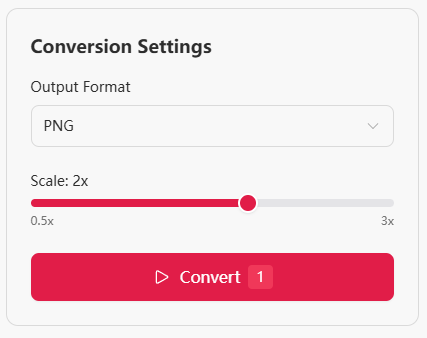
Pro tip: For text-heavy PDFs, 1x-1.5x is sufficient. For image-rich PDFs (catalogs, portfolios), go with 2x or higher.
Tip: If your output looks blurry, check the scale setting. Text PDFs are fine at 1x, but PDFs containing high-resolution photos or fine line art benefit from 2x or higher.
Step 4: Start Conversion
Click the "Convert" button. The tool processes each page one by one, with a progress bar showing real-time completion percentage.
During conversion, each PDF is parsed and every page is rendered into your chosen image format. The entire process happens inside your browser.
Step 5: Download Your Images
Once conversion is complete, you have two download options:
- Individual download — Click the download button on any image to save it separately
- Batch ZIP download — Click "Download All as ZIP" to get everything in a single archive, organized by PDF name
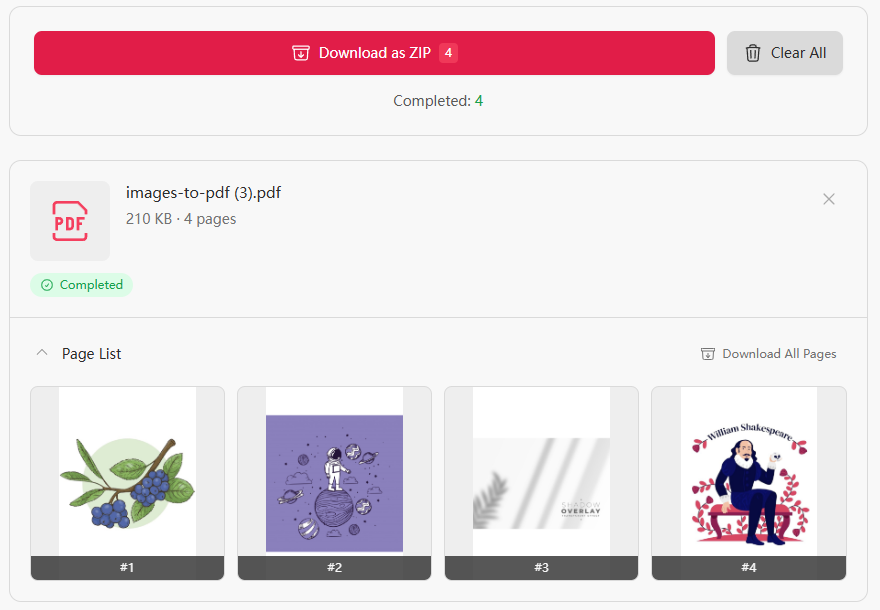
Each card shows a preview of the converted image and its file size. If the quality isn't what you expected, adjust the settings and convert again.
Pro Tips
1. Text PDFs: PNG + 1x is plenty
If your PDF is mostly text or line art, PNG at 1x scale produces crisp results with small file sizes.
2. Image-heavy PDFs: go 2x or higher
For PDFs with lots of images (catalogs, design portfolios, photo albums), use JPEG at 2x scale for the best balance of clarity and file size.
3. Batch multiple PDFs
You can drag in several PDFs at once. When you download the ZIP archive, pages from each PDF are placed in separate folders automatically — no mixing.
4. A privacy bonus
PDFs can carry hidden metadata (author, creation date, edit history). Extracted images are pure pixel output — they don't carry over any of that hidden data. If you want to go further, use the Metadata Remover for an extra layer of cleanup.
Frequently Asked Questions
Does converting PDF to images lose quality?
Quality depends on the scale setting. Text-heavy PDFs are crisp at 1x-1.5x. Image-rich PDFs (catalogs, portfolios) benefit from 2x or higher.
What output formats are supported?
Three formats: PNG (lossless, supports transparency), JPEG (smaller files, universal compatibility), and WebP (modern format, smallest file size at equivalent quality).
Can I batch convert multiple PDFs?
Yes. Drag in multiple PDFs at once. The tool processes them sequentially and the ZIP download organizes pages into separate folders by source file.
How is this different from taking screenshots?
Screenshots are limited by your screen resolution (typically 72-96 DPI). This tool outputs high-resolution images at up to 3x scale, far exceeding screenshot quality.
Do the output images retain PDF metadata?
No. The output is pure pixel data. Hidden metadata from the original PDF (author, creation date, edit history) is not carried over.
Is it safe to convert PDF to image online?
Yes. All processing happens locally in your browser. Your PDF never leaves your computer. All data is cleared when you close the page.
Try It Now
The PDF to Image tool is completely free. No account needed. Your files stay on your computer from start to finish.
Also check out:
- Image to PDF — the reverse direction, combine multiple images into a single PDF
- Image Format Converter — convert between JPEG, PNG, WebP, AVIF, and BMP